Windows¶
The dongle needs no driver on Windows: both interfaces bind to Windows' in-box class drivers (HID for FIDO2, the Microsoft USB CCID driver for the smart card). Tested on Windows 11 in a VirtualBox VM with USB passthrough: v0.3.0 on 18 October 2026, v0.3.1 on 19 October 2026, release builds. v0.3.2 also on a physical Windows 10 laptop (October 2026, the owner's test): FIDO2 registration and login with a PIN and touch in a Chromium browser (Chrome or Brave), no driver install; Windows shows the device as "nixtropic".
| Feature | v0.3.0 | v0.3.1 |
|---|---|---|
| USB enumeration, no driver install | works | works |
| OpenPGP card with Gpg4win / Kleopatra: card view, sign, encrypt, decrypt | works | not re-tested on Windows (Linux suites pass) |
| FIDO2 touch (device selection) | works | works |
| FIDO2 registration and login with a PIN set (Brave, webauthn.io) | fails | works — see FIDO2 with a PIN |
| FIDO2 slow touch (10 s) and Cancel in the Windows dialog | not tested | works |
| FIDO2 PIN change (Windows Settings) | reports an error, although the change completes | works |
| SSH through gpg-agent | not tested | not tested |
| Flashing from Windows | not tested — flash from Linux | not tested |
OpenPGP card¶
- Install Gpg4win.
-
Create
%APPDATA%\gnupg\scdaemon.conf(Win+R →%APPDATA%\gnupg) with:disable-ccid pcsc-sharedThe reasons are the same as on Linux: see Linux setup.
-
In PowerShell:
gpgconf --kill scdaemon
gpg --card-status
If it reports no card, reboot Windows once.
-
Kleopatra → Tools → Manage Smart Cards shows the card and its three keys. Import your public key (File → Import) and the keys appear with their user IDs:
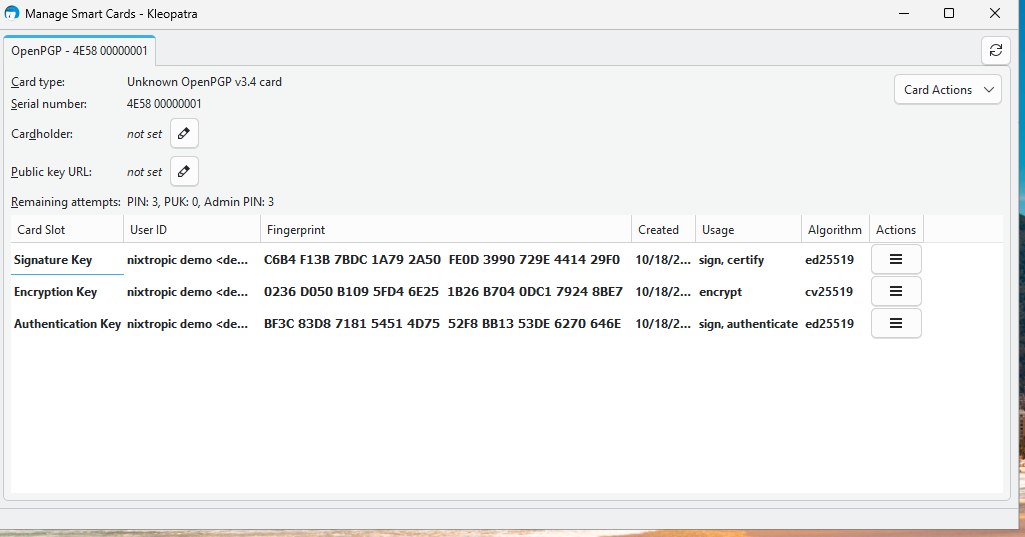
-
Sign, encrypt and decrypt from Kleopatra's Notepad or the file actions. Each operation asks for the user PIN and, with the default touch policy, a press of SW1.
Card setup (PINs, touch policy, key generation) works with gpg --card-edit exactly as
described in card setup.
FIDO2 with a PIN¶
Works from v0.3.1: registration and login with a PIN (Brave on webauthn.io), a touch after a 10 s wait, Cancel in the Windows dialog, and a PIN change in Settings → Accounts → Sign-in options → Security key. The Settings dialog may close without a confirmation; the USB capture shows the dongle answering the PIN change with success.
What was wrong in v0.3.0. The dongle sent nothing while it worked on a PIN operation, and Windows abandons a silent request after a few seconds. USB captures showed it giving up on the PIN token after 2.6 s and on a PIN change after 6.6 s; the dongle's successful answer arrived 1–2 ms later in both cases, so registration looped back to the PIN prompt and a PIN change reported "Something went wrong" although it had taken effect. Linux clients wait for the answer and were not affected.
The fix. v0.3.1 sends CTAPHID KEEPALIVE packets on the request's channel while it runs: status PROCESSING between chip operations, UPNEEDED while it waits for SW1 (CTAP 2.2 §11.2.9.1.7). In the 19 October captures the longest silence during a request is 240 ms; the PIN token (2.6 s) and the PIN change (6.6 s) now complete. The specification recommends a KEEPALIVE at least every 100 ms; the PIN operations reach about 250 ms because one step, the P-256 key agreement in software on the STM32, cannot be interrupted. See testing for the per-operation timings.
alwaysUv after a reset
After a FIDO2 reset (for example Reset security key in Windows Settings), setting
the first PIN also turns on alwaysUv: every registration and login then asks for
the PIN, even where the site does not. This is the design since Phase 6, not a
Windows effect. It can be switched off with authenticatorConfig, for example
fido2-token -D -u /dev/hidrawN on Linux.
Flashing from Windows¶
Not tested. The STM32 DFU device (0483:df11) probably needs Zadig
to bind WinUSB for dfu-util.exe, or ST's STM32CubeProgrammer with its signed driver.
Flash from Linux for now.
SSH¶
Not tested. Gpg4win's agent can serve SSH with enable-win32-openssh-support in
gpg-agent.conf and the built-in ssh-agent service disabled.
Testing in a VirtualBox VM¶
Pass the dongle through: VM settings → USB → enable the USB controller → add a filter
for nixtropic nixtropic (cafe:4001), or attach it at run time with
Devices → USB. While the VM holds the dongle, the Linux host cannot use it; stop the
host's pcscd first if it holds the reader.